
The new price list needs to go out on Friday
Nóra needs to send customers the November price list by Friday noon. Bence works with the suppliers, so he can check the figures. Nóra wants one last look before it goes out.
It could start with a quick “can you check this?” message and end with “hang on, am I waiting for you, or are you waiting for me?” Instead, let’s follow the same task through Cetli.
This is an illustrative story with fictional people and data. The screenshots were taken in the working Cetli application.
1. Nóra writes the request and assigns Bence
On the Tasks page, Nóra opens a new task and titles it “Check the November price list”. She selects their shared group and chooses Bence as the assignee.
Bence, please check the November prices against the supplier list, including delivery charges. We need it by Friday noon; I will review it before we send it out. — Nóra
She can attach the price list or add a link to the shared document in the description. She sets the deadline in the timing options, then creates the task. Friday noon now exists as a deadline, not just a sentence.
A few lines will do. Bence needs to know which document to use, what to check, and who will review the result.
2. Bence picks it up
Bence opens the task and changes its status to In progress. Nóra already assigned him, so he does not need to assign himself again.
If your team puts unassigned work into a shared group first, use Manage assignees → Take responsibility → Save. With the appropriate permission, Only I will continue replaces the existing assignees. Choose it when you really are taking over the whole task.
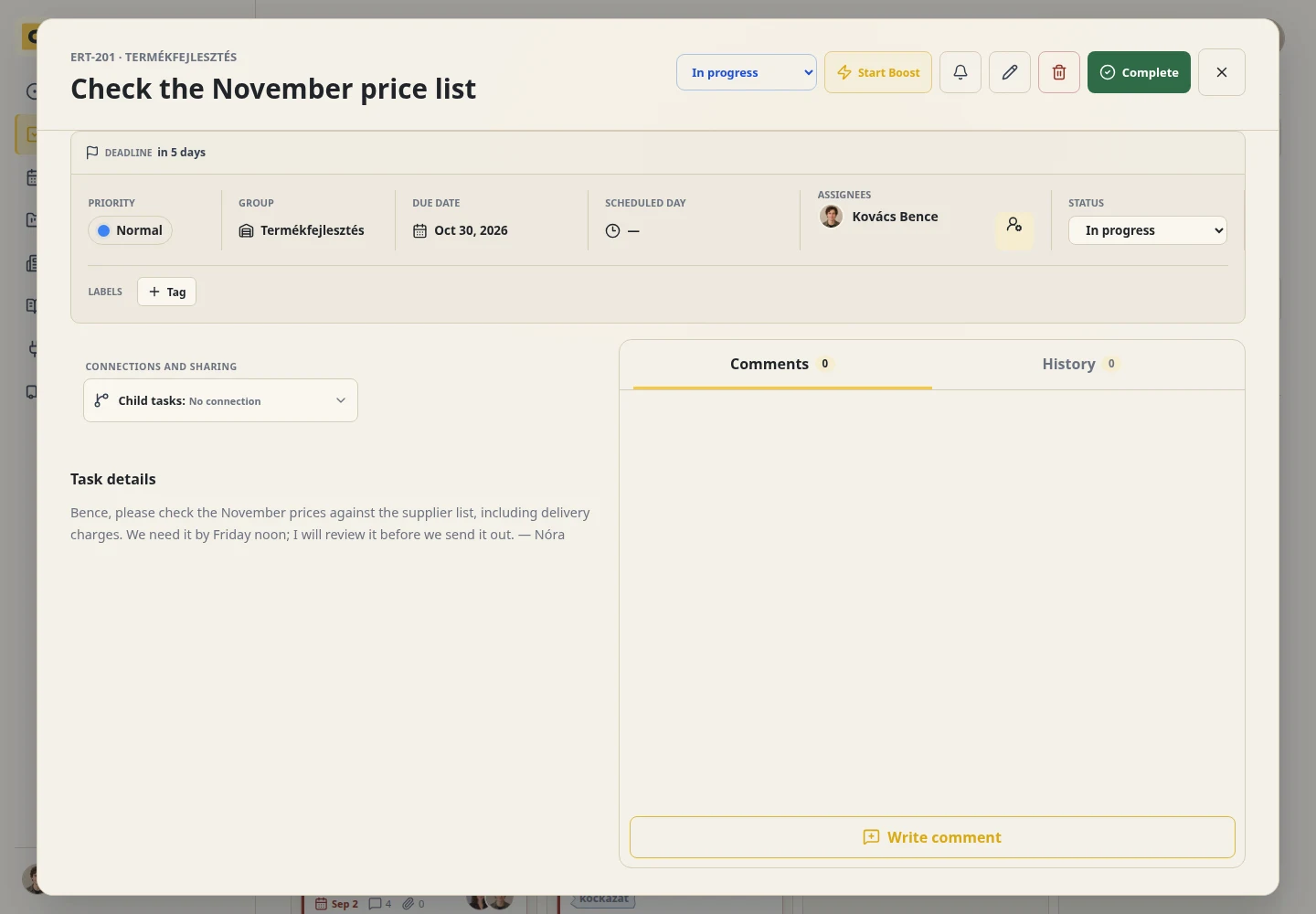
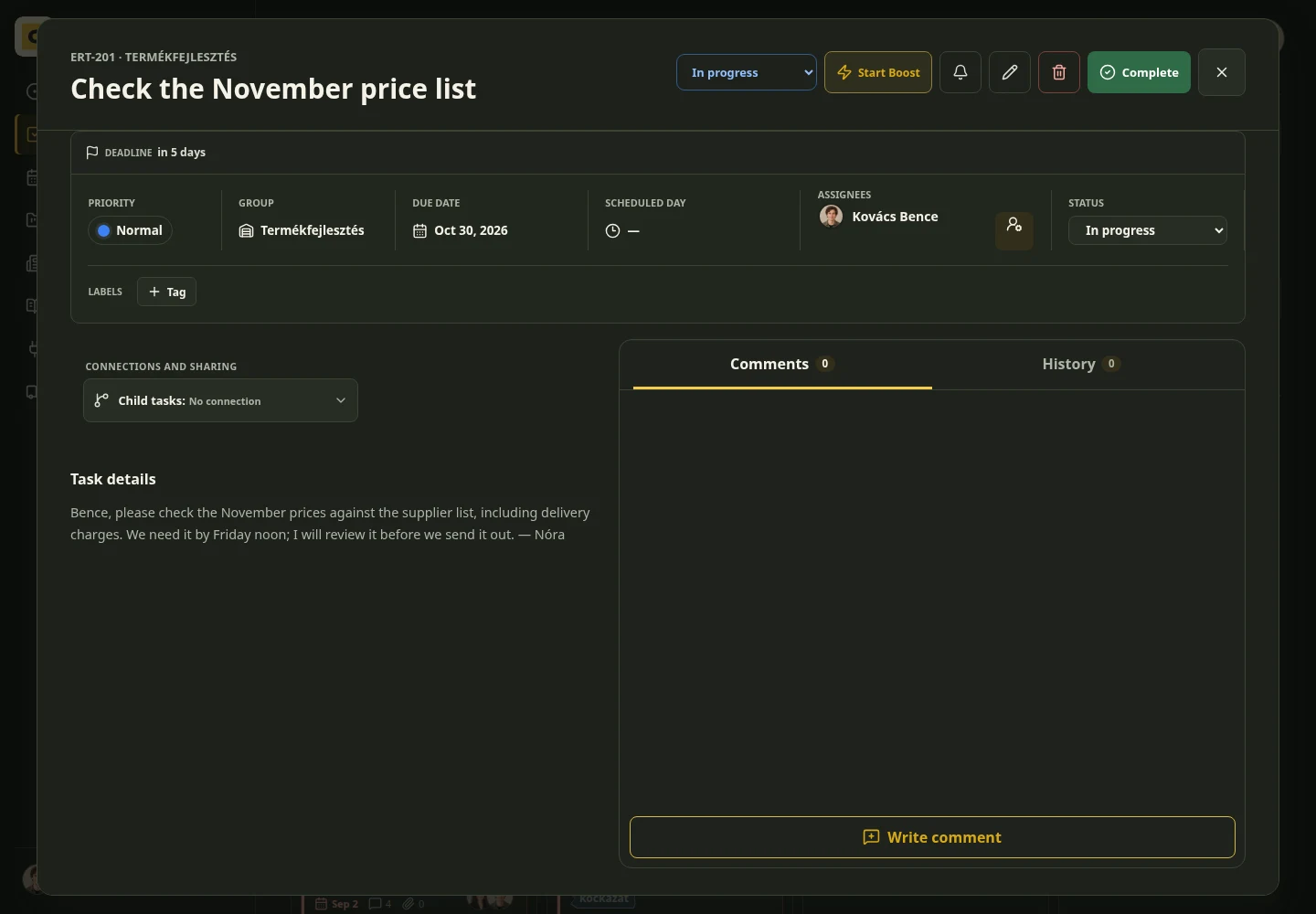
If Bence has a question, he adds a comment here. Does the new delivery charge apply to existing orders too? The answer stays with the task, ready for the person checking it later.
3. Done — but what changed?
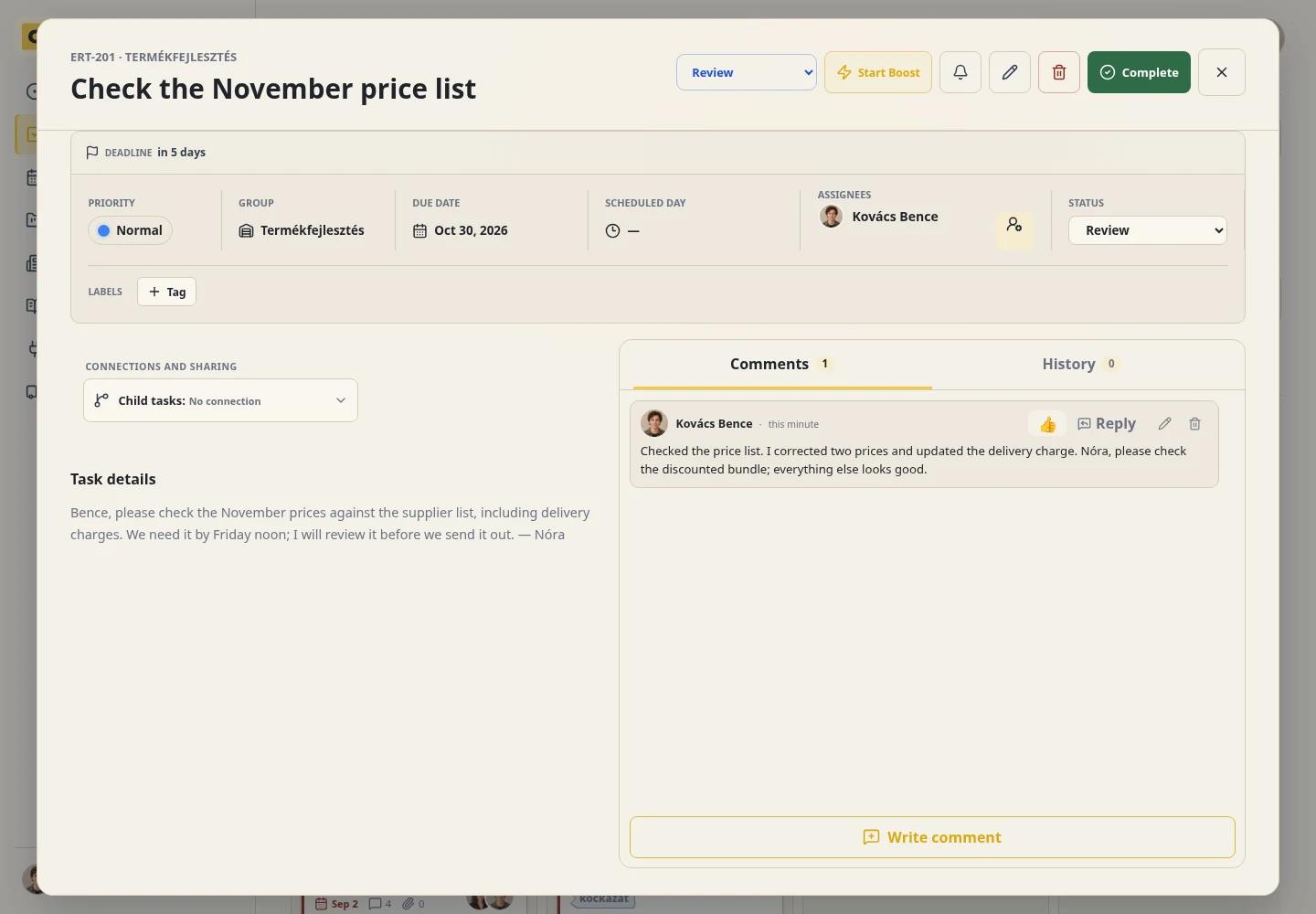
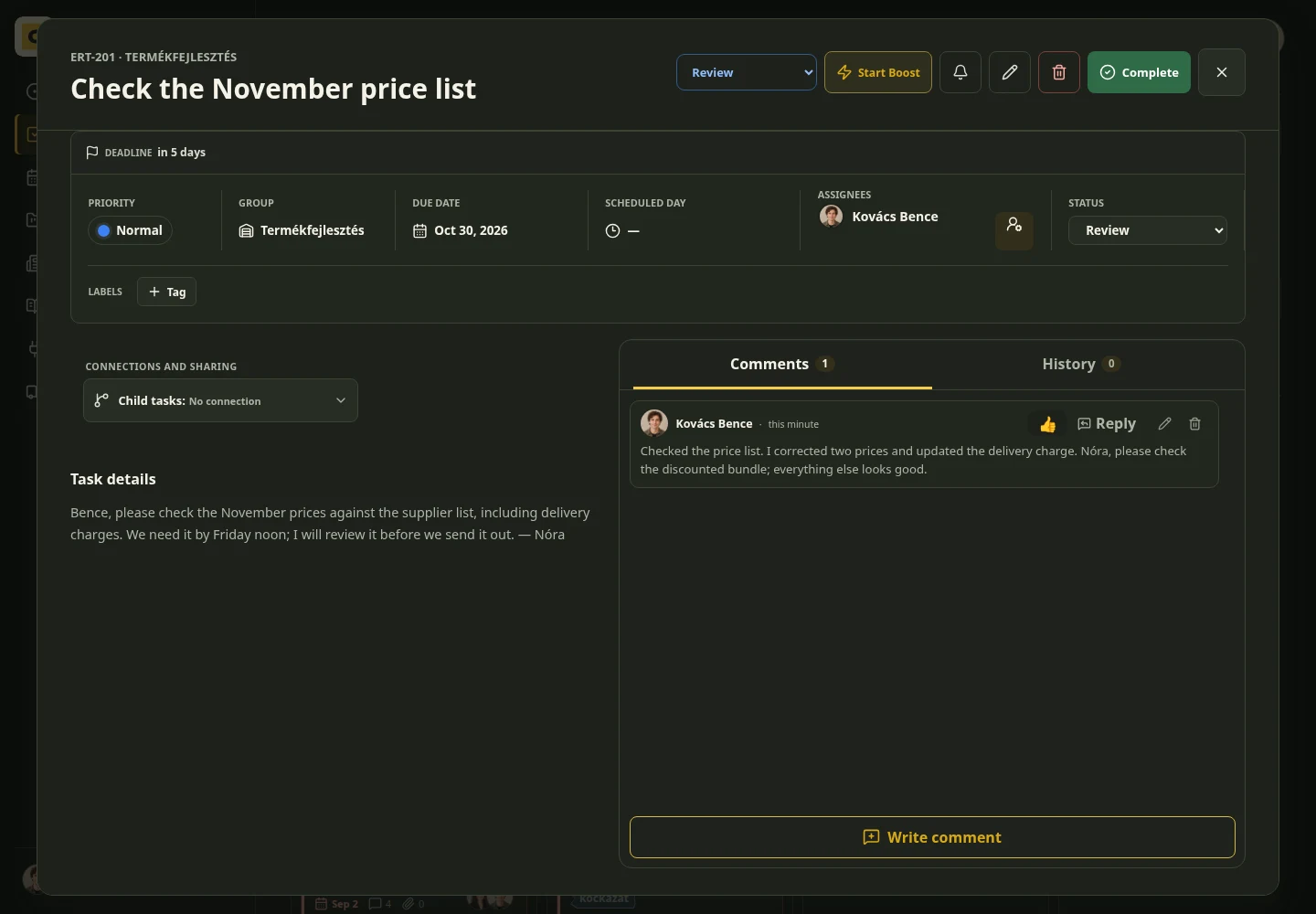
Bence checks the list, corrects two prices and updates the delivery charge. Before handing it back, he opens Comments and selects Write comment:
Checked the price list. I corrected two prices and updated the delivery charge. Nóra, please check the discounted bundle; everything else looks good.
If he worked in a separate file, he attaches the revised version too. “Done” alone would leave Nóra guessing. These few lines tell her where to look.
4. Move it to Review and hand it back
The team has set up an active status called Review. If you do not have one yet, ask the colleague who manages your group settings to create it. It should remain an active stage: the work still needs checking.
In Column view, Bence drags the card into Review. He can also select the status inside the task, which is useful on a phone.
Then he opens Manage assignees, chooses Return to: Szabó Nóra, and saves. Nóra created this task, so she is the person offered in this example.
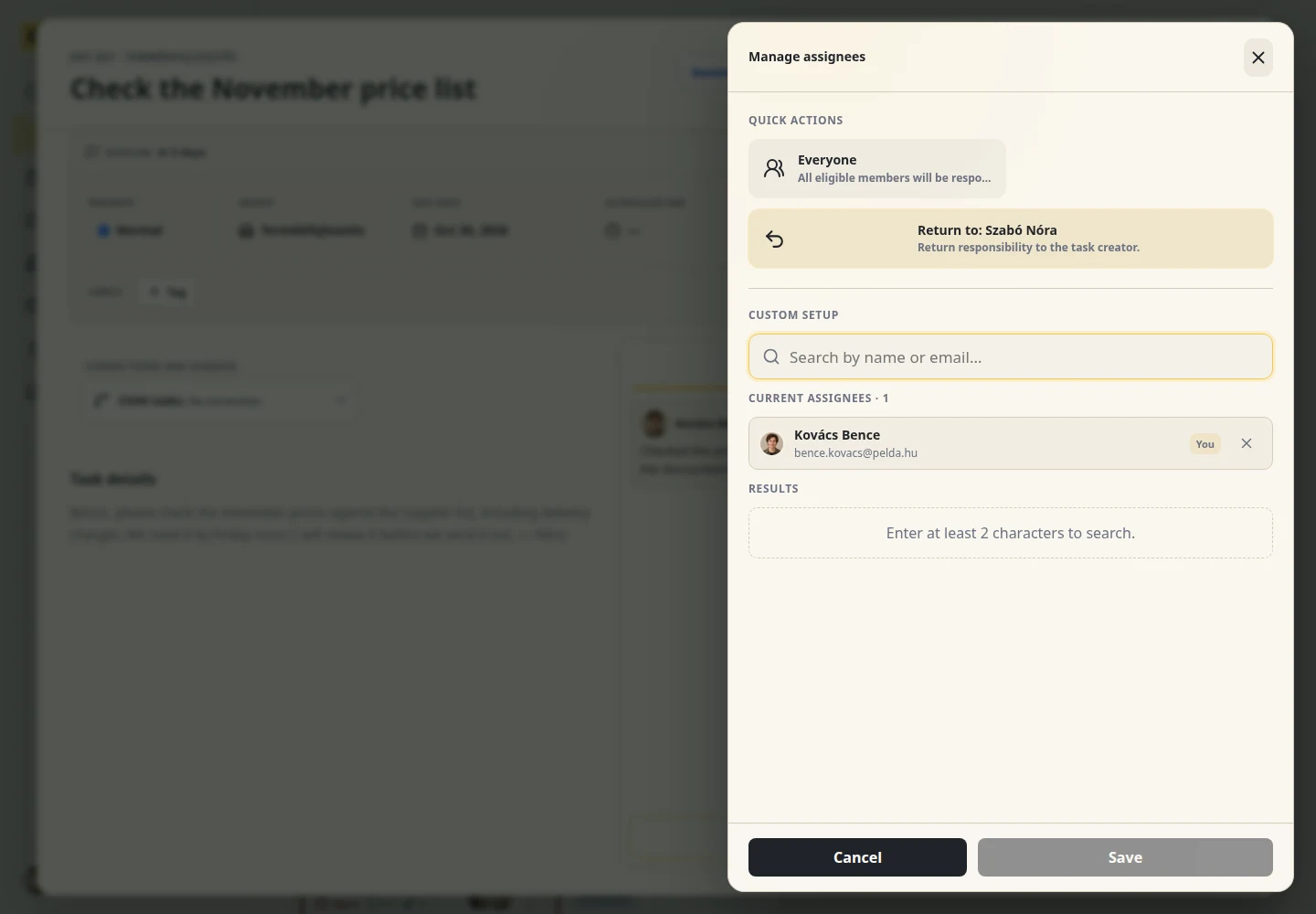
Both steps make the handoff. Review tells the team where the work stands. Nóra’s name tells them who needs to act next. Changing the column does not change the assignee automatically.
On another task, Return to may suggest a previous assignee. Check the name before saving. If it is not the reviewer you need, select the right colleague from the assignees, provided you have permission to do so.
5. Nóra checks it and closes the task
Nóra opens the task assigned back to her. The original request, Bence’s comment and the document are together. She checks the discounted bundle as well.
If something still needs work, she leaves a specific comment: “The bundle still has the old discount. Please update that.” She moves the task back to In progress and assigns Bence again. The same task goes around once more, with its context intact.
If everything looks good, she replies: “Checked it, all good to send. Thanks!” Then she selects the team’s final status, Closed, in the status selector.
Bence does not have to ask whether it was accepted. Nóra does not have to hunt for the final version on Friday morning.
Try it with your next shared task
Pick one piece of work that one person prepares and another checks. Agree on a review column, and make the person with the next step responsible at every handoff.
The agreement is simple: say what you need, show when you start, explain what changed, hand it back for review. Then actually close it.
Cetli's Start plan is free for up to two people.
Try it free ↗